Your Salesforce Certificates Are About to Expire More Often. Are You Ready?
In a previous post on the Tython blog, we covered the summer security enforcement wave hitting Salesforce orgs through mid-July. But there’s another set of infrastructure changes happening in parallel that many teams haven’t accounted for–and the consequences of missing them aren’t a policy violation. They’re outages.
Salesforce is overhauling how certificates work on the platform. Three changes are happening simultaneously: certificate lifespans are shrinking dramatically, dual-use certificates are being deprecated, and the root certificate that anchors trust for the entire platform is changing. Each one independently requires action. Together, they represent a fundamental shift in how Salesforce orgs manage the cryptographic infrastructure that keeps integrations, SSO, and encrypted data flowing.
If you’re not sure what any of that means–or if you’re sure it’s “someone else’s problem”–keep reading.
Certificates 101: Why This Matters to You
A TLS certificate is a digital credential that proves a server is who it claims to be. When your browser connects to Salesforce, or when an integration calls a Salesforce API, a certificate is exchanged to establish that the connection is legitimate and encrypted. Without a valid certificate, the connection fails. No graceful fallback. No partial access. It just stops working.
Certificates exist because the internet has no built-in way to verify identity. When your middleware server makes an API call to Salesforce, how does it know it’s actually talking to Salesforce and not an impersonator? The certificate answers that question. It’s issued by a trusted third party–a Certificate Authority (CA)–that has verified the identity of the certificate holder. Your systems trust the CA, and the CA vouches for the server, so the connection proceeds.
Certificates have expiration dates by design. A certificate that lasts forever would be a permanent liability if its private key were ever compromised. Short lifespans limit the window of exposure. When a certificate expires and isn’t replaced, every system that depends on it breaks–SSO logins, API integrations, Experience Cloud sites, encrypted data access.
That’s the baseline. Here’s what’s changing.
Three Changes, One Window
1. Certificate Lifespans Are Shrinking
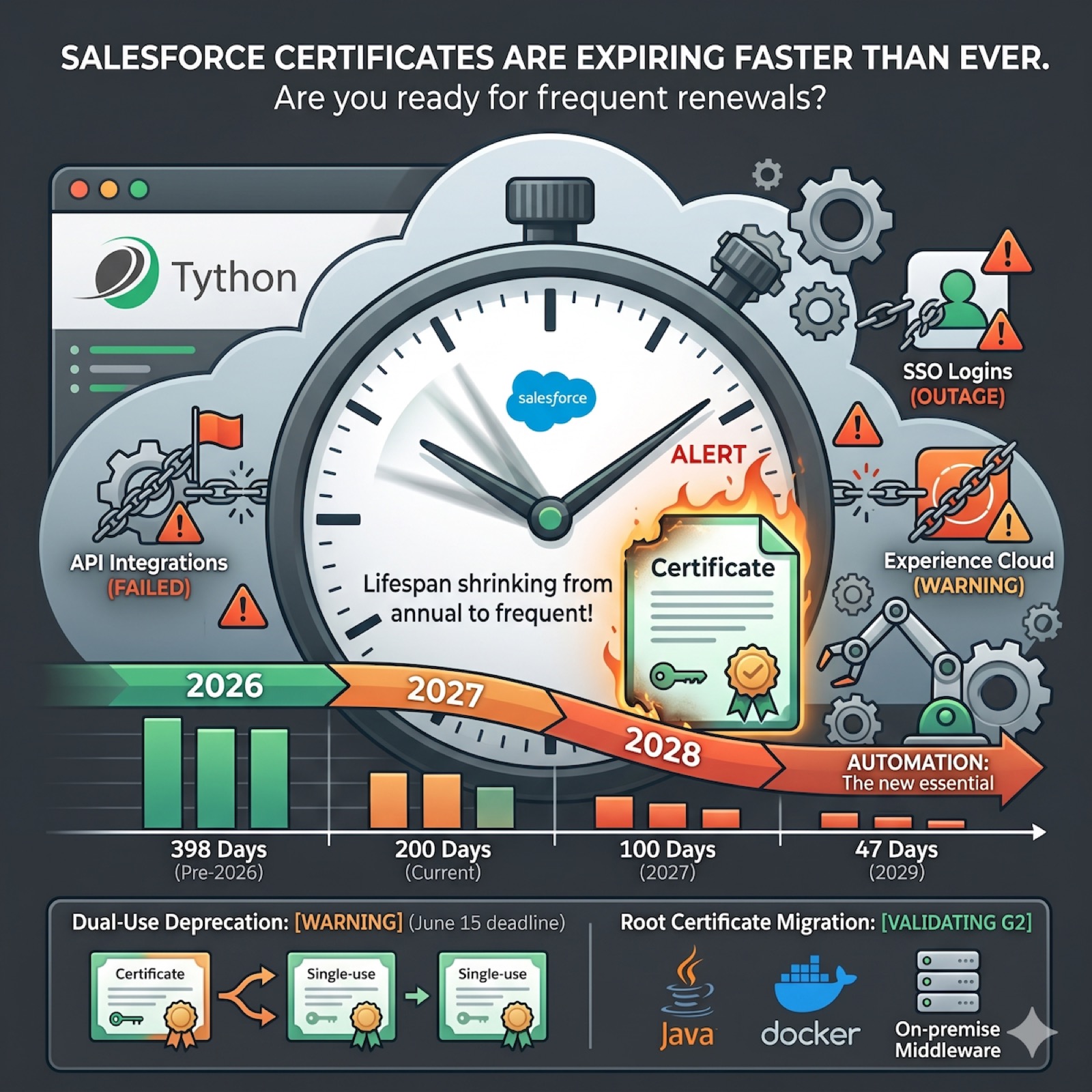
The CA/Browser Forum–the industry body that governs certificate standards–has mandated shorter maximum lifespans for publicly trusted TLS certificates. Salesforce is implementing these reductions in three phases:
- March 15, 2026: Maximum lifespan drops from 398 days to 200 days (already in effect)
- March 15, 2027: Maximum drops to 100 days
- March 15, 2029: Maximum drops to 47 days
This means certificates that used to be an annual renewal task become a quarterly task next year–and by 2029, you’ll be renewing roughly eight times per year. If your current process is a calendar reminder and a manual upload, that process will fail at scale.
These rules apply to CA-signed certificates. Self-signed certificates used for internal SSO or private integrations are exempt from the lifespan mandates.
2. Dual-Use Certificates Are Banned
Effective June 15, 2026, the Google Chrome Root Program Policy (v1.7) prohibits certificates from serving dual purposes. Specifically:
- A single certificate can no longer be used for both server authentication and client authentication in mutual TLS (mTLS) configurations
- Certificates used for SAML SSO can no longer handle both request signing and assertion decryption
This is a cryptographic hygiene enforcement. Using one key pair for multiple purposes increases the blast radius if that key is compromised. The industry is mandating separation.
If your org uses mTLS for API integrations or has SAML configurations that rely on a single certificate for multiple operations, those configurations will break after June 15.
3. Salesforce Is Changing Its Root Certificate
Salesforce began migrating to a new root certificate authority–DigiCert Global Root G2–on February 5, 2026. This is a phased rollout across Salesforce’s server infrastructure, meaning different pods update at different times.
A root certificate is the anchor of trust in the certificate chain. Every system that connects to Salesforce needs to trust the root CA that issued Salesforce’s server certificates. If your integration servers, middleware platforms, or Java environments don’t have DigiCert Global Root G2 in their trust store, connections will fail–and they’ll fail unpredictably as different Salesforce pods rotate to the new root.
Modern browsers and operating systems generally include G2 in their trust stores already. The risk is concentrated in server-side environments: custom Java applications (which maintain their own cacerts keystore), Docker containers, on-premise middleware, and older systems that haven’t been updated.
What to Do Now
- Audit your certificates. Go to Setup > Certificate and Key Management. Identify every CA-signed certificate, its expiration date, and what it’s used for (SSO, API integration, encryption, Experience Cloud).
- Plan for the June 15 dual-use deadline. If any certificate serves both server and client authentication, or handles both SAML signing and decryption, it needs to be split into separate single-purpose certificates before June 15.
- Validate the G2 root. On every server that connects to Salesforce–integration middleware, ETL platforms, custom applications–confirm that DigiCert Global Root G2 is in the trust store. For Java environments, check the
cacertskeystore explicitly. - Start automating renewals. With lifespans dropping to 200 days now and 47 days by 2029, manual renewal processes won’t scale. Evaluate Salesforce’s CDN-managed certificate option for Experience Cloud domains, and implement certificate lifecycle management tooling for integration certificates.
- Enable expiration notifications. Assign the “Expired Certificate Notification” permission to yourself and at least one other admin so Salesforce alerts you before certificates expire.
Deeper Dive
How the Certificate Chain of Trust Works
Understanding why the root certificate migration matters requires understanding how certificate trust is established. It’s not a single handshake–it’s a chain.
When your integration server connects to Salesforce over HTTPS, Salesforce presents its server certificate. That certificate wasn’t issued directly by a root CA. Instead, there’s a chain:
- The server certificate (issued to *.salesforce.com or your custom domain) is signed by an intermediate CA
- The intermediate CA’s certificate is signed by the root CA
- The root CA’s certificate is self-signed and pre-installed in your system’s trust store
Your system validates the chain from bottom to top. If any link is missing or untrusted, the connection fails with a TLS handshake error. The entire chain must be valid.
Salesforce is changing link #3–the root. The platform is moving from its current root certificate to DigiCert Global Root G2. When a Salesforce server pod rotates to the new certificate chain, any system connecting to that pod needs G2 in its trust store. Since the rollout is pod-by-pod, you might see intermittent failures: one API call succeeds (hitting a pod on the old chain), the next fails (hitting a pod on the new chain). These intermittent failures are the hardest to diagnose because they look like flaky network issues, not certificate problems.
Where to Check
The trust store location varies by platform:
- Operating systems (Windows, macOS, Linux): Maintain a system-level trust store that most applications use. These are typically updated automatically through OS updates and already include G2.
- Java applications: Use their own keystore (
cacertsfile in the JRE’slib/securitydirectory). This is the highest-risk environment because Java keystores are not automatically updated by OS patches. You need to explicitly import G2 if it’s not already present. - Docker containers: Inherit the trust store from their base image. If your container uses an outdated base image, G2 may be missing. Rebuild with an updated base image or add the certificate explicitly in your Dockerfile.
- Cloud middleware (Azure, AWS, GCP): Managed services generally handle root certificate updates, but custom middleware running on virtual machines or containers requires manual verification.
Validating G2 Trust
For Java environments, check if G2 is present:
keytool -list -keystore $JAVA_HOME/lib/security/cacerts -alias "digicertglobalrootg2" -storepass changeitIf the alias isn’t found, import it:
keytool -importcert -keystore $JAVA_HOME/lib/security/cacerts -alias "digicertglobalrootg2" -file DigiCertGlobalRootG2.crt -storepass changeitFor a quick connectivity test from any server:
curl -v https://login.salesforce.com 2>&1 | grep "SSL certificate"If the connection succeeds, G2 is trusted. If it fails with a certificate verification error, your trust store needs updating.
The Dual-Use Deprecation: What Needs to Change
The June 15 dual-use ban requires understanding how certificates are used in two specific Salesforce contexts: mutual TLS and SAML SSO.
Mutual TLS (mTLS)
Standard TLS is one-directional: the server proves its identity to the client. Mutual TLS adds a second direction–the client also proves its identity to the server using a client certificate. This is common in high-security API integrations where API keys or OAuth tokens alone aren’t considered sufficient.
Before June 15, many organizations used a single public certificate for both directions–the same certificate served as both the server’s identity and the client’s identity. The Chrome Root Program now requires these to be separate certificates with distinct Extended Key Usages (EKUs):
- Server certificates: Must have the Server Authentication EKU only
- Client certificates: Must have the Client Authentication EKU only
If you’re using mTLS with Salesforce, you need to:
- Identify any certificate that carries both Server Authentication and Client Authentication EKUs
- Obtain a new client-only certificate from a CA that supports Client Auth EKU-only issuance (Salesforce has published a list of supported CAs)
- Configure your mTLS setup to use the server certificate for inbound authentication and the separate client certificate for outbound authentication
- Consider using a Private PKI (internal certificate authority) for client certificates, which is not subject to the public CA/Browser Forum rules and provides more operational flexibility
SAML SSO
SAML SSO configurations in Salesforce can use certificates for two distinct operations:
- Signing: The certificate signs SAML requests or assertions to prove they came from the legitimate identity provider or service provider
- Encryption: The certificate encrypts SAML assertions so only the intended recipient can read them
Using a single certificate for both operations means a compromised key exposes both your authentication integrity (signing) and your data confidentiality (encryption). The dual-use ban requires splitting these into separate certificates:
- One certificate dedicated to signing operations
- A separate certificate dedicated to encryption operations
In Salesforce, navigate to Setup > Single Sign-On Settings and review your SAML configuration. If the same certificate is referenced for both signing and encryption, you’ll need to generate or obtain a second certificate and update the configuration.
Preparing for the 47-Day Future
The lifespan reductions are the change with the longest tail. The 200-day maximum is already in effect. The 100-day maximum arrives in March 2027. The 47-day maximum in March 2029. Each reduction compresses the operational window and increases the cost of manual processes.
Why Manual Renewal Breaks
Consider the math. With a 47-day maximum lifespan, a certificate issued on Day 1 expires on Day 47. Best practice is to renew before expiration–typically at the 2/3 mark, which means initiating renewal around Day 30. That gives you a 30-day operational cycle per certificate.
If your org manages 10 CA-signed certificates across SSO configurations, Experience Cloud domains, API integrations, and Shield encryption, you’ll be performing a certificate renewal roughly every three days. Each renewal involves generating a CSR, submitting it to your CA, receiving the signed certificate, uploading it to Salesforce, and validating that all dependent systems still work. One missed renewal takes down whichever system depends on that certificate.
Automation Strategies
The industry’s answer to short-lived certificates is automation, specifically the ACME (Automated Certificate Management Environment) protocol. Here’s how to approach it in the Salesforce context:
Experience Cloud Domains. Salesforce offers a CDN-managed certificate option. In Setup > Domains, select “A Salesforce content delivery network (CDN) partner serves the domain.” This delegates certificate issuance and renewal to Salesforce’s infrastructure using Let’s Encrypt via ACME. Certificates are issued, renewed, and deployed automatically with zero admin intervention. If you’re still manually uploading certificates for Experience Cloud custom domains, switch to this option now.
API Integration Certificates. Certificates used for outbound API calls from Salesforce (named credentials, connected apps) or inbound mTLS need a different approach. Options include:
- Certificate Lifecycle Management (CLM) platforms like Venafi, DigiCert CertCentral, or HashiCorp Vault PKI that automate the full issuance-renewal-deployment cycle
- Cloud-native certificate services (AWS Certificate Manager, Azure Key Vault, GCP Certificate Authority Service) for middleware hosted on those platforms
- Custom automation using the Salesforce Metadata API or Tooling API to programmatically upload renewed certificates
SSO Certificates. SAML certificates in Salesforce can be managed through Setup, but automated rotation requires coordination with your identity provider. Both sides of the SAML relationship need to recognize the new certificate. Plan for a rotation process that updates the IdP first (or simultaneously), then rotates the Salesforce side, with a brief overlap period where both the old and new certificates are trusted.
Building a Rotation Calendar
Even with automation, you need visibility into what’s expiring and when. Build a certificate inventory that tracks:
- Certificate name and type (CA-signed vs. self-signed)
- Purpose (SSO, mTLS, API integration, Experience Cloud, encryption)
- Issuing CA
- Issuance date and expiration date
- Renewal method (manual, automated, Salesforce-managed)
- Owner (the person or team responsible for renewal)
- Dependencies (which systems, integrations, or users are affected if this certificate fails)
Salesforce provides certificate expiration notifications, but they’re opt-in. Assign the “Expired Certificate Notification” permission to at least two people–a primary owner and a backup–so notifications aren’t missed during vacations or role changes.
What Breaks When a Certificate Expires
The failure modes for expired or misconfigured certificates are worth understanding because they’re rarely obvious:
SSO failure. If the certificate used in your SAML SSO configuration expires, users authenticating through your identity provider will see a login error. The error message typically references a signature validation failure, not an expired certificate. Without context, it looks like an IdP misconfiguration rather than a certificate problem.
API integration failure. Expired certificates on outbound callouts produce TLS handshake errors on the remote side. The Salesforce error message is often generic: “Remote host closed connection during handshake” or “PKIX path validation failed.” Inbound mTLS failures are even harder to trace–the client receives a connection refused or 403 error with no indication that the root cause is certificate-related.
Experience Cloud outage. An expired certificate on a custom Experience Cloud domain means the site is inaccessible over HTTPS. Visitors see a browser security warning (the red “Not Secure” page) and cannot proceed. There’s no HTTP fallback–modern browsers block access entirely for expired certificates.
Shield encryption access loss. If your org uses Shield Platform Encryption with a tenant secret backed by a certificate, and that certificate expires or is rotated without updating the key material, you lose the ability to decrypt encrypted field data. This is recoverable, but the recovery process requires Salesforce support engagement and can take time.
Audit Checklist
Certificate Inventory
- [ ] Navigate to Setup > Certificate and Key Management
- [ ] List all certificates, noting: name, type (CA-signed or self-signed), expiration date, key size, and associated usage
- [ ] Identify which certificates are used for SSO (Setup > Single Sign-On Settings)
- [ ] Identify which certificates are used for mTLS (Setup > API > Client Certificate Configuration)
- [ ] Identify which certificates are used for outbound callouts via Named Credentials
- [ ] Identify which certificates are associated with Experience Cloud custom domains
- [ ] Identify which certificates are linked to Shield Platform Encryption tenant secrets
Dual-Use Assessment (Before June 15)
- [ ] For each certificate used in mTLS, check the Extended Key Usage fields–does it carry both Server Authentication and Client Authentication?
- [ ] For each SAML SSO configuration, check if the same certificate handles both signing and encryption
- [ ] For any dual-use certificates found, plan the separation: obtain or generate single-purpose replacements
- [ ] Coordinate with external partners or IdPs that reference the certificates being replaced
- [ ] Test the new certificate configuration in sandbox before applying to production
Root Certificate Validation
- [ ] Identify all servers and services that connect to Salesforce (middleware, ETL, custom apps, CI/CD pipelines)
- [ ] For each, verify that DigiCert Global Root G2 is present in the trust store
- [ ] For Java environments, check the
cacertskeystore explicitly - [ ] For Docker environments, verify the base image includes G2 or add it to the Dockerfile
- [ ] For cloud-managed middleware, confirm the platform’s managed trust store is current
Automation Readiness
- [ ] For Experience Cloud domains, switch to CDN-managed certificates if not already done
- [ ] For integration certificates, evaluate CLM tooling or cloud-native certificate services
- [ ] For SSO certificates, document the rotation process including IdP coordination steps
- [ ] Assign “Expired Certificate Notification” permission to at least two admins
- [ ] Establish a certificate rotation runbook with clear ownership and escalation paths
The Bottom Line
Certificate management has been a set-it-and-forget-it task for most Salesforce teams. That era is ending. The combination of shorter lifespans, the dual-use ban, and the root certificate migration means certificates are now an active operational concern–one that requires inventory, automation, and ownership.
The June 15 dual-use deadline is the most immediate action item. The root certificate migration is already underway and could cause failures at any time if your trust stores aren’t updated. And the lifespan reductions will compound the operational burden every year through 2029.
The teams that treat this as a one-time cleanup will be back in crisis mode in six months. The teams that use this moment to build automated, monitored certificate lifecycle processes will have solved the problem permanently.
Book a 15-Minute Security Strategy Call
Reference(s):
https://nebulaconsulting.co.uk/insights/salesforce-certificate-lifespan-changes-explained/
https://sliick.com/articles/salesforce-2026-certificate-management-updates/