
SalesforceSecurityComplianceTools
No YubiKey Required: Why Your 1Password Passkey Satisfies Salesforce's Phishing-Resistant MFA Mandate
In a recent post on the Tython blog, we mapped out Salesforce’s summer security wave–the stack of enforcement deadlines hitting orgs between now and mid-July. The one with the hardest edge lands in days: phishing-resistant MFA for privileged users, enforced in sandboxes starting June 22 and in production starting July 1. Standard authenticator apps and push notifications no longer clear the bar for anyone holding the System Administrator profile or the Modify All Data, View All Data, Customize Application, or Author Apex permissions.
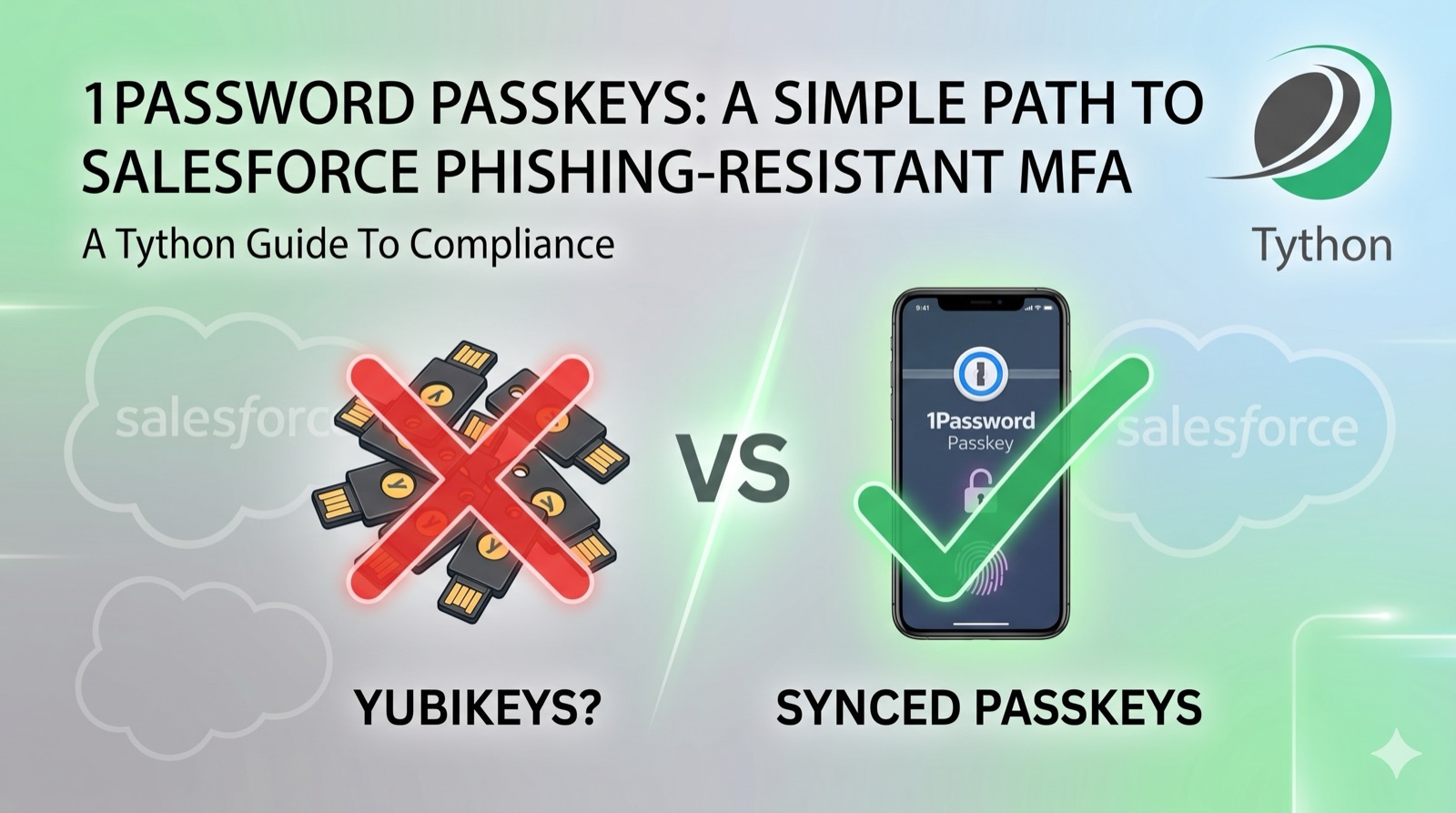
That has set off a quiet panic about hardware keys. The assumption is that “phishing-resistant” means buying a YubiKey for every admin and managing a drawer full of physical tokens. It doesn’t. A passkey synced through 1Password–or Bitwarden, or iCloud Keychain–qualifies, provided you set it up the right way. The catch is that the wrong setup looks almost identical and will get your admins locked out.
The Misconception
Salesforce’s documentation leans on the words “security key” and “built-in authenticator,” which reads like it’s pointing only at YubiKeys and Touch ID. But the requirement underneath is FIDO2/WebAuthn compliance, not a specific form factor. Cloud-synced passkeys from a FIDO2-compliant password manager meet the phishing-resistant bar. They aren’t device-bound the way a hardware key is, but device-binding was never what made these methods phishing-resistant.
Why a Synced Passkey Still Counts
Phishing resistance comes from origin binding. When you register a passkey, your authenticator generates a key pair cryptographically tied to the exact domain–login.salesforce.com or your My Domain host. At login, Salesforce sends a challenge, and the passkey will only sign it for the domain it was registered to. Land on a lookalike phishing page and the passkey simply refuses to respond. There is no code to read aloud, no prompt to approve, nothing a real-time phishing proxy can relay.
That protection lives in the challenge-response handshake, not in where the private key is stored. A 1Password passkey and a YubiKey passkey defend against phishing the same way. The difference is assurance and portability, not phishing resistance–which is a real trade-off worth understanding, but not one that changes whether the method satisfies the mandate.
The Trap That Will Block Your Admins
Here is where orgs get burned. Using 1Password to autofill your Salesforce password and store a 6-digit TOTP code is not phishing-resistant. That’s still a password plus a phishable one-time code–the password manager is just a convenient vault for both. Under the new mandate it does not qualify, even though many admins assume “I use 1Password for MFA” means they’re covered.
The qualifying setup is a genuine FIDO2/WebAuthn passkey created and stored in 1Password–a different credential type entirely. When you register a passkey, your browser hands the request to 1Password, which generates the key pair and stores the private key in the vault. When TOTP is involved, 1Password is just holding a shared secret and computing a time-based code that you (or an attacker on a phishing page) type into a field. Same app, completely different security properties. If your admins are relying on stored-password-plus-TOTP today, they are not compliant, and they’ll discover it at the login screen on June 22.
Setting It Up in Salesforce
These methods are not on by default. Two steps get you there.
First, enable the methods in Setup. Navigate to Identity Verification ([MyDomain]/lightning/setup/IdentityVerification/home)–not Session Settings, which is where admins often look first. Turn on both of these toggles:
- “Let users verify their identity with a built-in authenticator such as Touch ID or Windows Hello”
- “Let users verify their identity with a physical security key (U2F or WebAuthn)”
A synced passkey from 1Password is offered through the security-key/WebAuthn path, so that second toggle is the one that matters most here–but enable both. If either is off, Salesforce has nothing to present at step-up and the user is hard-blocked with a “contact your administrator” error. You can optionally enable “Allow passwordless login with passkeys” for a smoother sign-in. Note that once enabled, these methods are available to all org users; there’s no way to scope them to admins only.
Second, have each affected user register a method: Avatar > Settings > Advanced User Details > Built-In Authenticators, and add the passkey or security key. Enabling the feature org-wide does not make anyone compliant–registration is per user, and it’s the step that’s easy to forget until enforcement blocks someone.
What to Do Now
- Identify every privileged user–anyone with the System Administrator profile, or Modify All Data, View All Data, Customize Application, or Author Apex.
- Audit how each actually authenticates today. Flag anyone on TOTP apps, push notifications, or stored-password-plus-TOTP.
- Enable the built-in authenticator and security key methods under Identity Verification.
- Have each affected user register a real passkey or hardware key. A 1Password (or Bitwarden, or iCloud Keychain) passkey is sufficient.
- If you use SSO, confirm your IdP sends phishing-resistant AMR/ACR signals (see the Deeper Dive).
- Use the June 22 sandbox enforcement as a dry run before production enforcement begins July 1.
Deeper Dive
Synced vs. Device-Bound Passkeys: The Real Trade-Off
Both kinds of passkey are phishing-resistant. Where they diverge is assurance–how strong a guarantee you have about where the private key lives and who can reach it.
A device-bound passkey (a YubiKey, or a platform authenticator like a TPM-backed Windows Hello credential) keeps the private key on a single piece of hardware. It cannot be exported. To use it, an attacker needs physical possession of the device plus the local unlock factor. The assurance is high; the cost is portability and recovery. Lose the YubiKey and that credential is gone–which is exactly why hardware-key deployments need a registered backup key per user.
A synced passkey (1Password, Bitwarden, iCloud Keychain) stores the private key in an encrypted vault that replicates across your devices. That’s enormously more convenient–register once, sign in everywhere, and recover through the vault if you lose a device–but the security boundary is now the vault itself. Whoever can unlock the vault can use the passkey. That places real weight on the password manager’s own protections: a strong account password, MFA on the vault, and the manager’s end-to-end encryption design.
For Salesforce’s mandate, both clear the bar, because both defeat phishing through origin binding. But the assurance distinction should drive policy. For your highest-privilege accounts–the handful of full system administrators who can export everything–a device-bound hardware key raises the floor on what an attacker must compromise. For the broader privileged population, synced passkeys deliver phishing resistance at a fraction of the rollout cost and support burden. Many orgs land on a hybrid: hardware keys for break-glass and top-tier admins, synced passkeys for everyone else.
One practical note: Salesforce does not currently let you require a specific authenticator type or enforce attestation (the AAGUID-level check that would let you say “hardware keys only”). The phishing-resistant requirement is satisfied by any qualifying FIDO2 method. If your security policy demands device-bound keys for certain roles, you’ll enforce that operationally, not through a Salesforce toggle.
The SSO Signal Trap
If your users reach Salesforce through SSO, the phishing-resistant check moves upstream to your identity provider–and there’s a naming trap that catches teams off guard.
Salesforce evaluates the authentication-method signal your IdP passes in the assertion (the AMR/ACR claim). If those signals aren’t sent, or don’t indicate a phishing-resistant method, Salesforce forces the user to register a passkey during login anyway, even if they authenticated with a hardware key at the IdP. The surprising part: if your IdP literally sends passkey or webauthn as the AMR value, Salesforce does not recognize those on its phishing-resistant list and downgrades the assertion. Your admin gets challenged despite doing everything right.
Salesforce recognizes signals such as cert, fido, fido2, fpt, hwk, iris, pin, pki, pop, retina, sc, smartcard, swk, TLSClient, user, vbm, wia, and x509. Configure your IdP to emit one of those values (for a FIDO2 login, fido2 or hwk is the natural fit) rather than the human-friendly word “passkey.” Test this in sandbox before June 22, because the failure mode–an admin who authenticated correctly but still gets challenged–looks like a bug and burns support cycles.
Step-Up Auth Is a Separate Gotcha
Don’t conflate login MFA with step-up authentication for report actions, which the summer wave also introduced. Step-up is a session-level prompt, and crucially, users who logged in via SSO with a non-Salesforce MFA method (Okta Verify, Duo) cannot use that method to satisfy a step-up challenge. They need a Salesforce-native MFA method–a registered passkey works here too–or a phone/email fallback. Registering a passkey directly in Salesforce, even for SSO users, gives them something that satisfies both the login mandate and inline step-up prompts.
Recovery and Deprovisioning
Two operational details that matter once passkeys are live:
- Recovery. A synced passkey rides along with the user’s password-manager account, so device loss is far less disruptive than with a hardware key–recovery flows through the vault. For device-bound keys, register a backup key per privileged user up front; the alternative is an admin-assisted reset every time someone loses a token, which is both a support cost and a social-engineering target.
- Deprovisioning. When a privileged user leaves, removing their Salesforce access is the control that matters–the passkey is useless without an active user and the org’s origin. But if that user enrolled a synced passkey that lives in a personal (rather than corporate) password manager, the credential persists in their vault after offboarding. It can’t be used against a deactivated account, but it’s a good reason to standardize privileged users on managed, corporate vaults or device-bound keys rather than personal accounts.
The Bottom Line
Phishing-resistant MFA is a real and overdue raising of the bar, and the deadline is close: sandboxes on June 22, production on July 1. But it does not have to mean a hardware procurement project. The requirement is FIDO2/WebAuthn origin binding, and a passkey stored in a FIDO2-compliant password manager delivers exactly that. The cheapest compliant path for most orgs is a passkey your admins create in the password manager they already use.
The single mistake to avoid is mistaking a stored password plus a TOTP code for a passkey. They live in the same app and feel like the same thing, but only one of them is phishing-resistant–and only one of them will get your admins through the login screen on June 22.
Book a 15-Minute Security Strategy Call
Reference(s):
https://help.salesforce.com/s/articleView?id=005321563&language=en_US&type=1
https://help.salesforce.com/s/articleView?id=sf.mfa_supported_verification_methods.htm
https://www.salesforceben.com/which-salesforce-users-need-passkeys-a-quick-guide-for-admins/